Academy · Module 1 of 4 · 2 min
Your first invoice
From a blank screen to a sent invoice, a client who has viewed it, and a recorded payment.
The steps
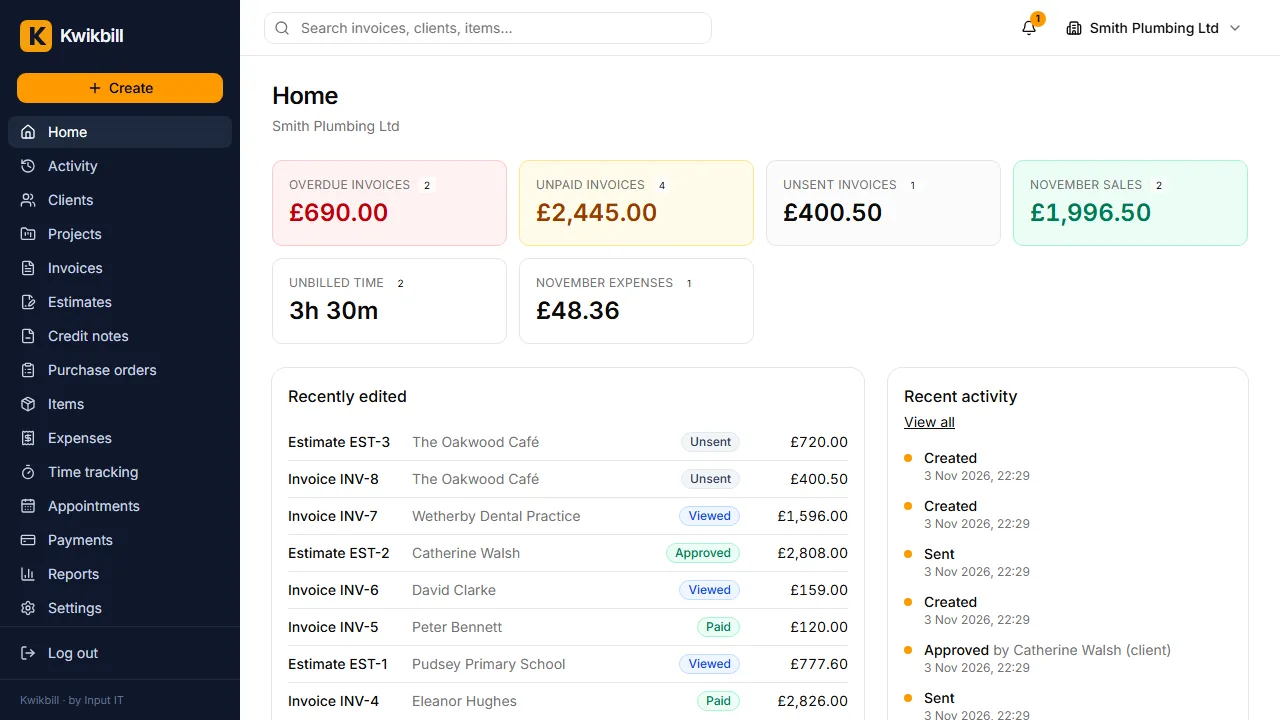
1. Home shows who owes you
Home has what is overdue, what is unpaid and what you have sold this month, with the latest invoices and quotes underneath.
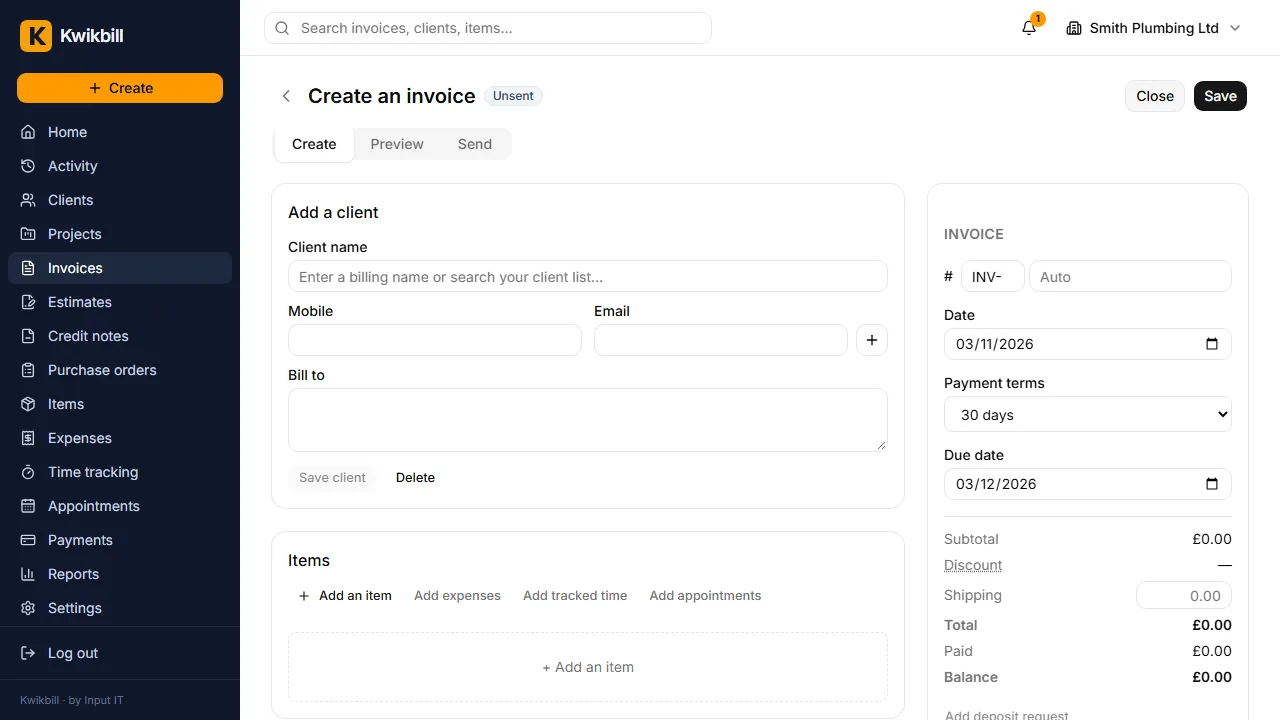
2. Start a new invoice
Open Invoices and press New invoice.
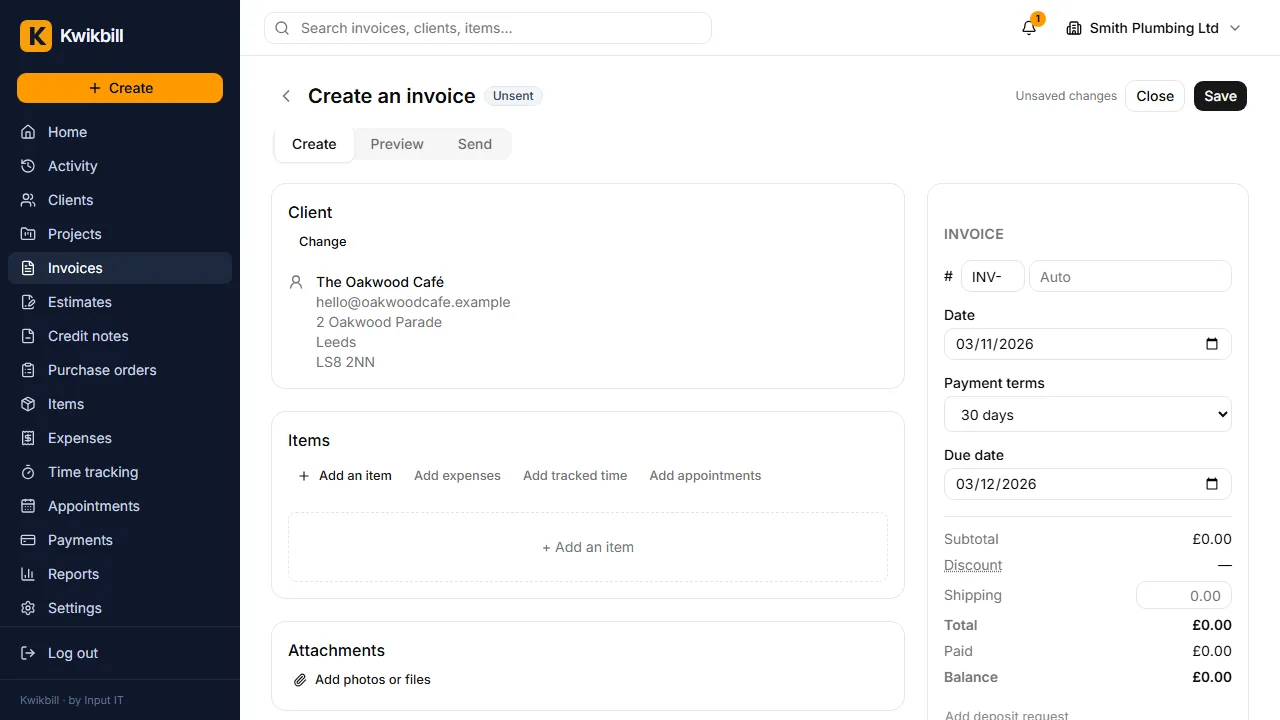
3. Choose the client
Start typing a name and pick the client from the list. A new client can be added from the same box.
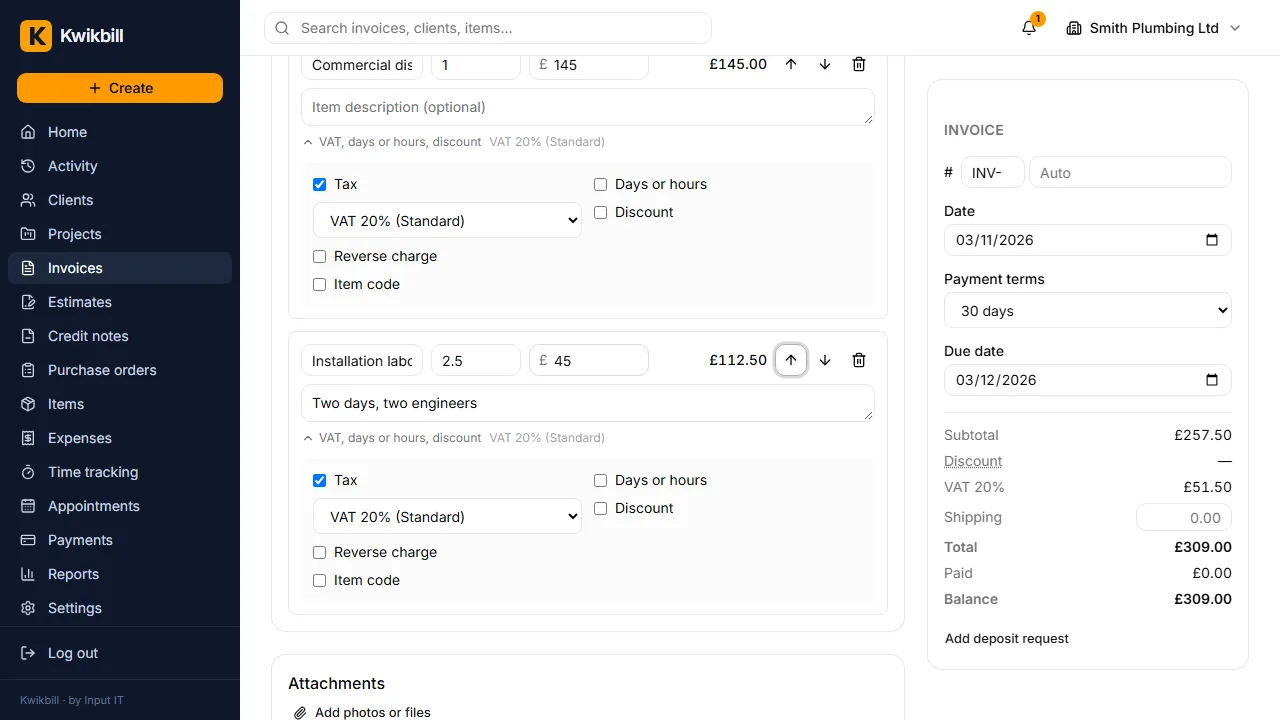
4. Add what you did
One line per job or part. Saved items appear as you type, with their price and VAT; anything new can be typed in.
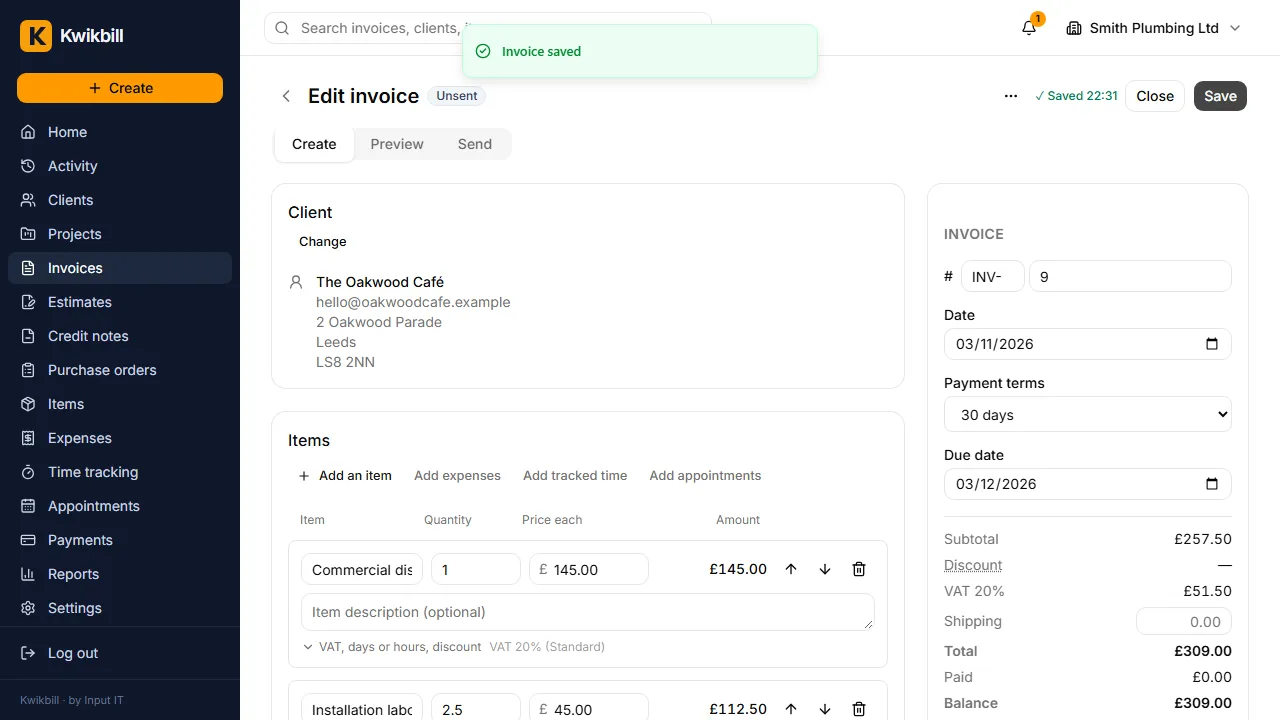
5. Check the totals and save
Subtotal, VAT and total are worked out for you. Save gives the invoice its number.
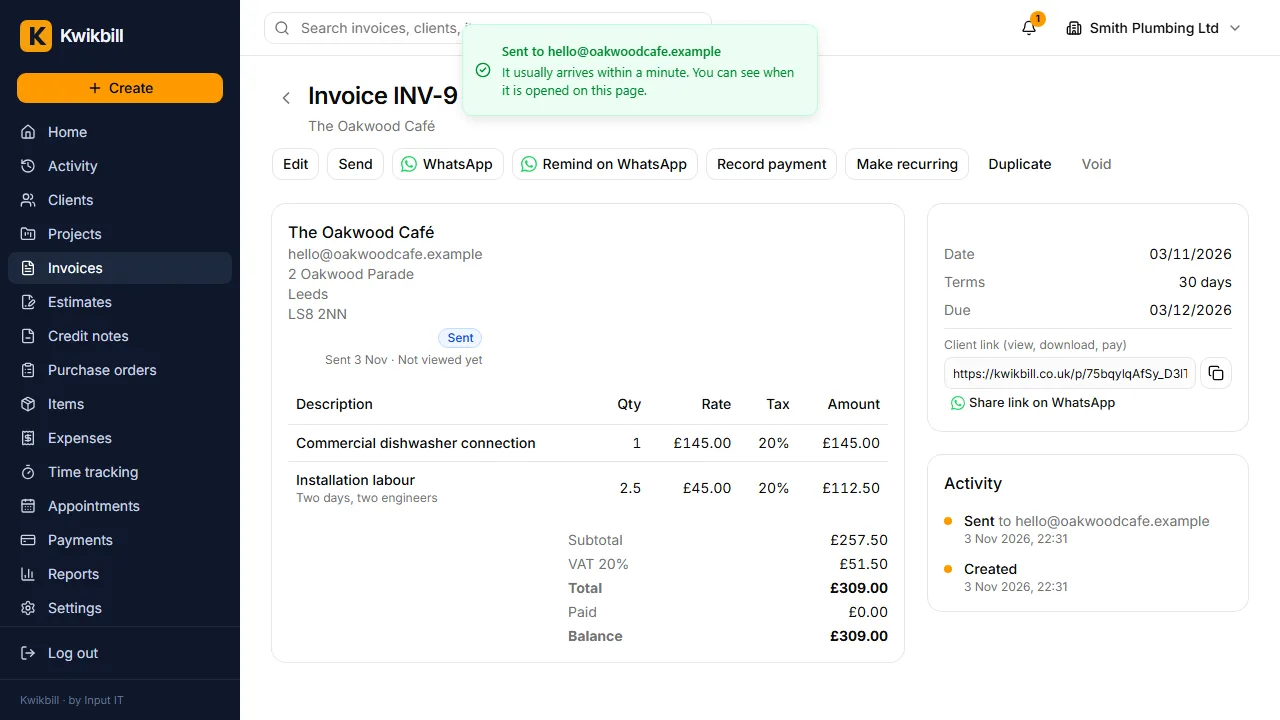
6. Send it
Send emails the invoice under your business name with a link to view, download and pay. The same link can go by WhatsApp or text.
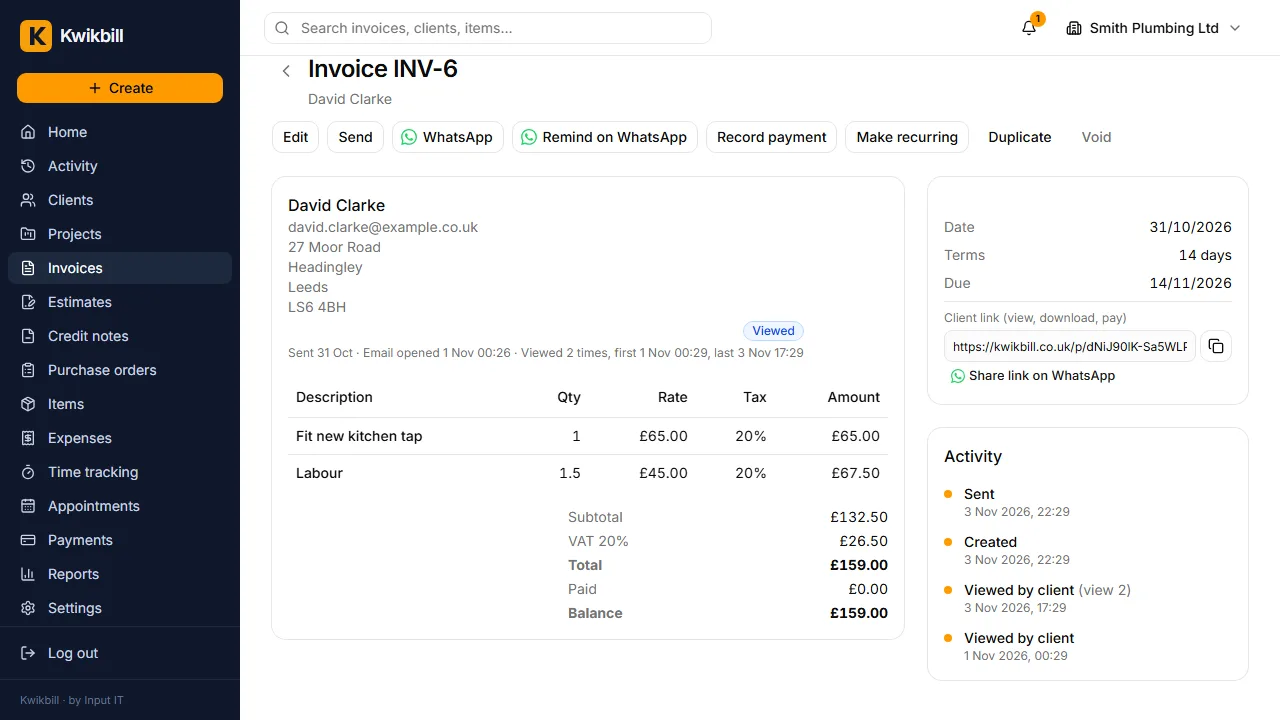
7. See when it is opened
The invoice page shows when the email was opened and when the link was viewed, and how many times.
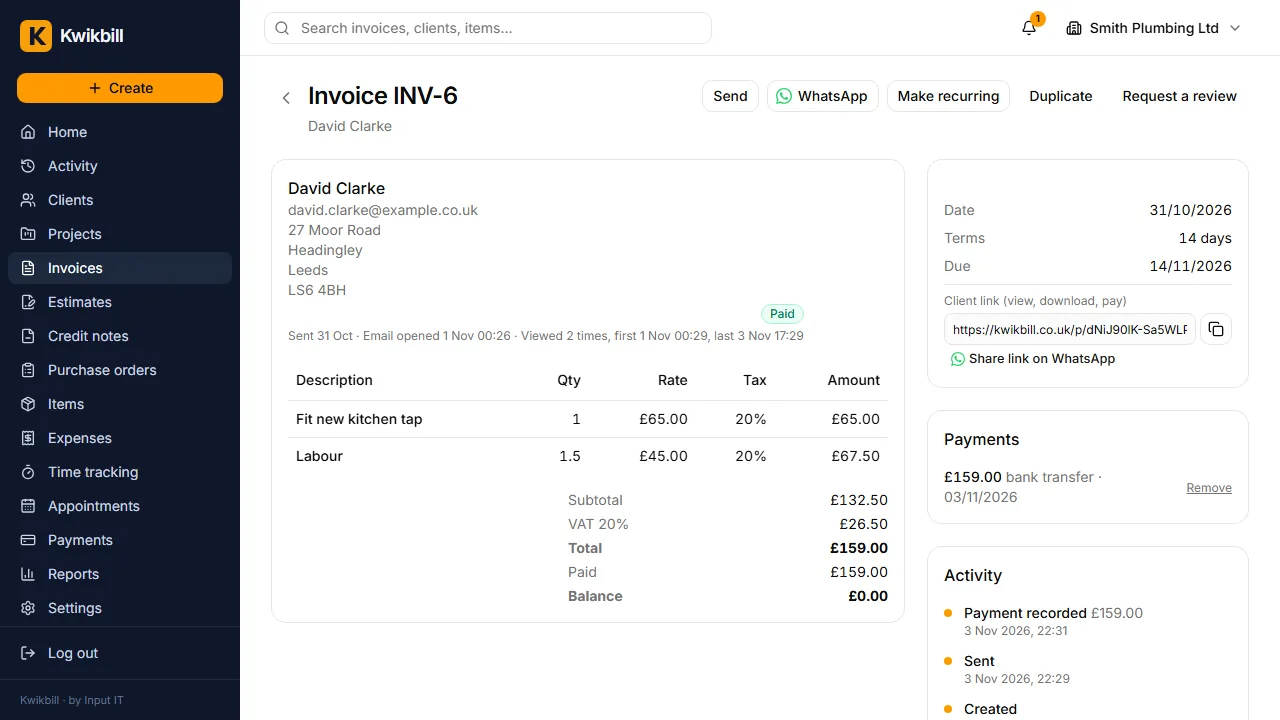
8. Record the payment
Record payment marks the invoice paid and, if you want, emails a receipt.