Academy · Module 2 of 4 · 1 min
Move from Invoice2go
Export everything from Invoice2go, drop the zip files into Kwikbill, and carry on with your numbering.
The steps
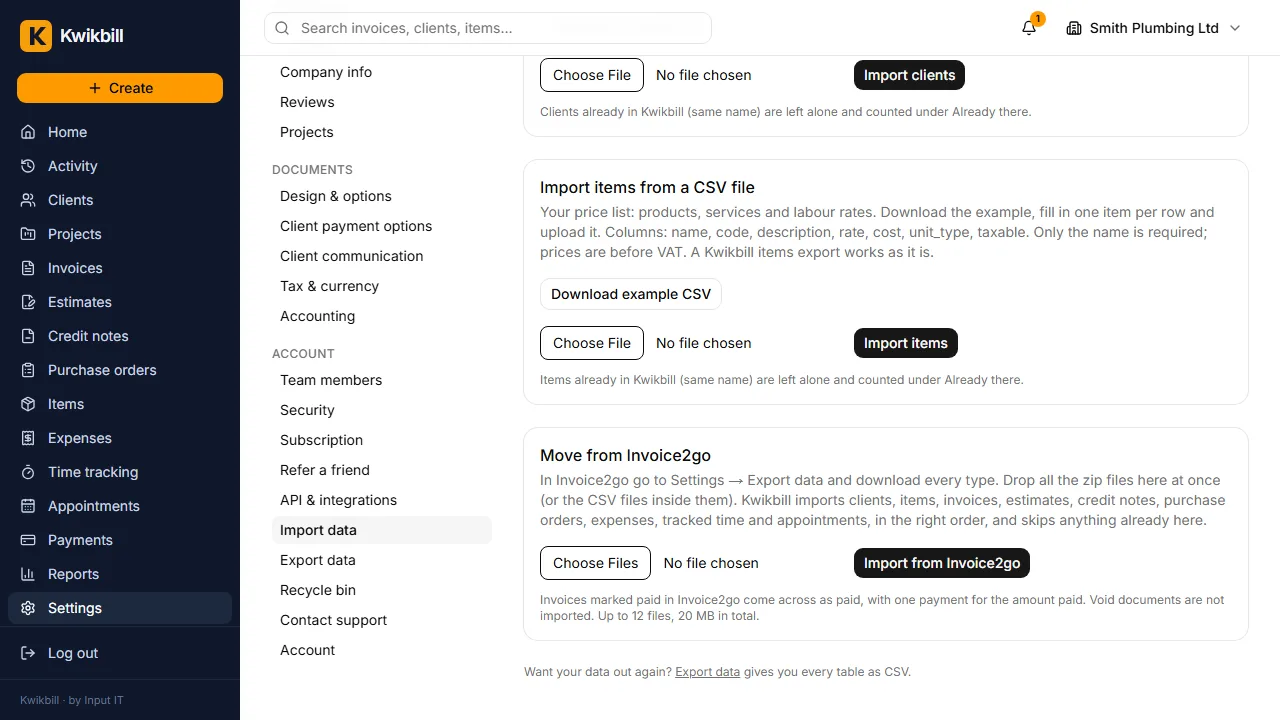
1. Export everything from Invoice2go
In Invoice2go go to Settings, then Export data, and download every type: clients, items, invoices, estimates, credit notes, purchase orders, expenses, time and appointments. Each download is a zip file.
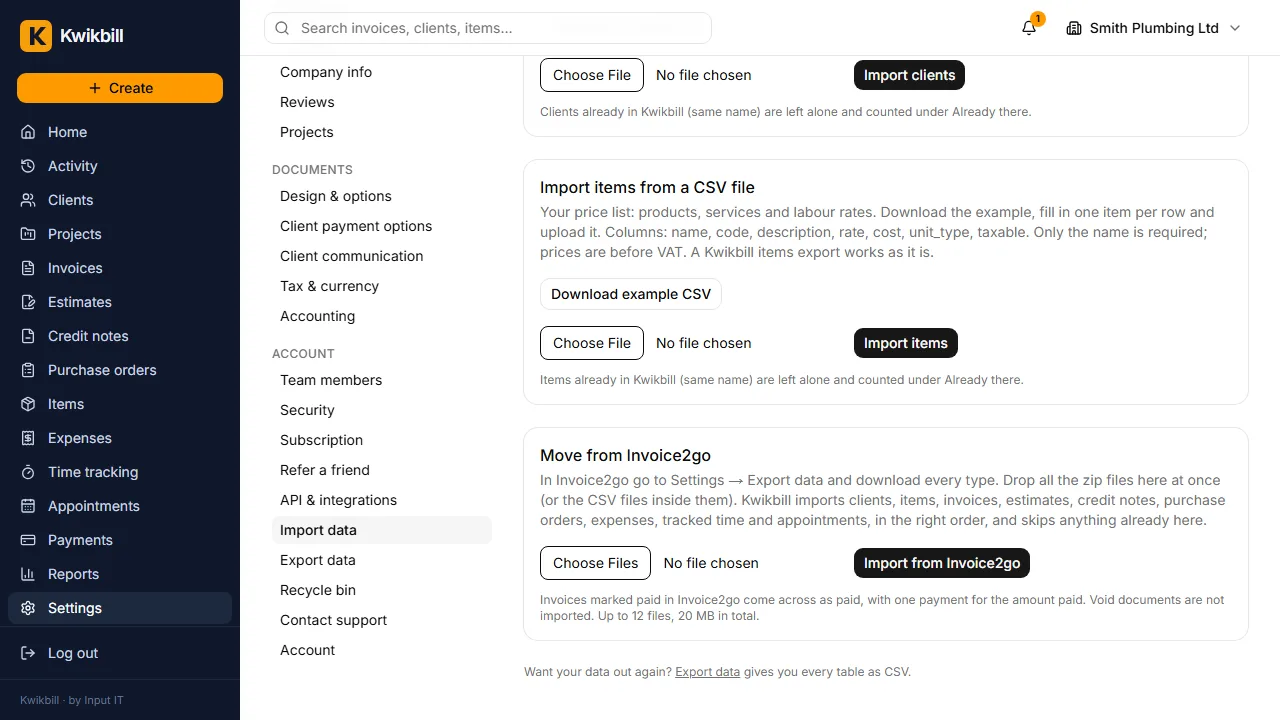
2. Open Import data in Kwikbill
In Kwikbill open Settings, then Import data. The last card is Move from Invoice2go.
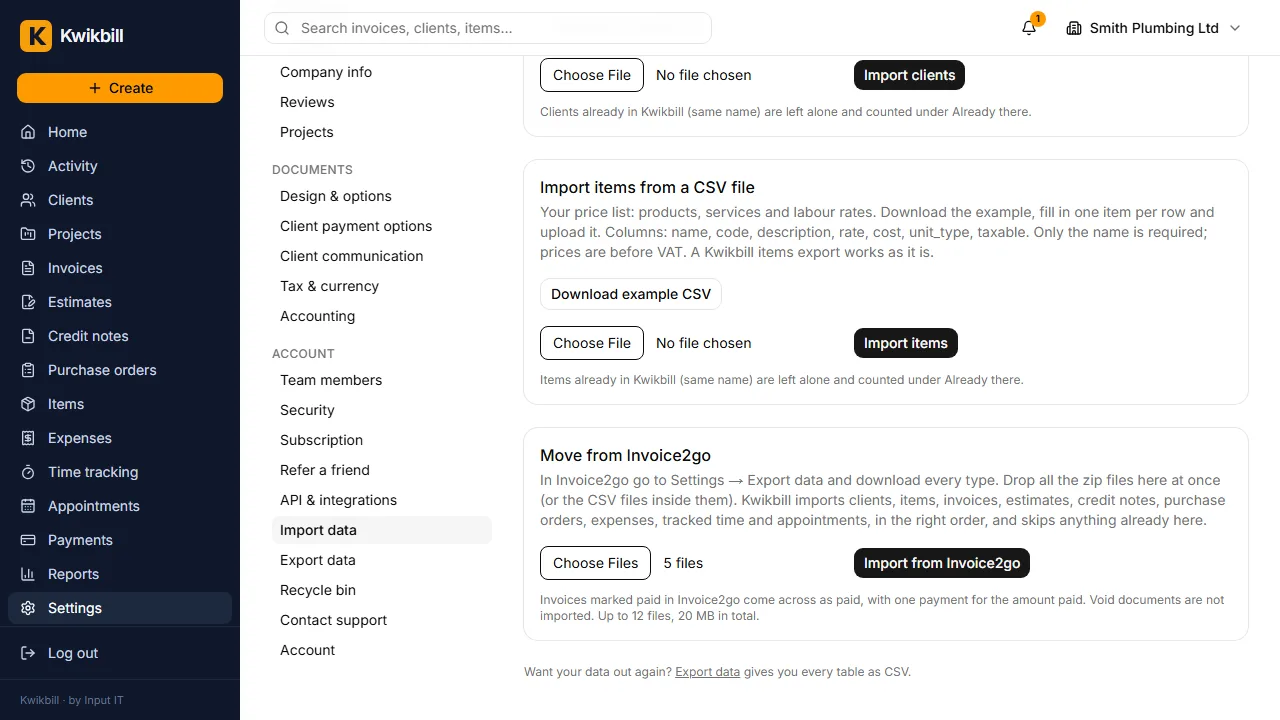
3. Choose all the zip files at once
Select every zip file in one go. Kwikbill reads the CSV files inside and works out what each one holds, so the order does not matter.
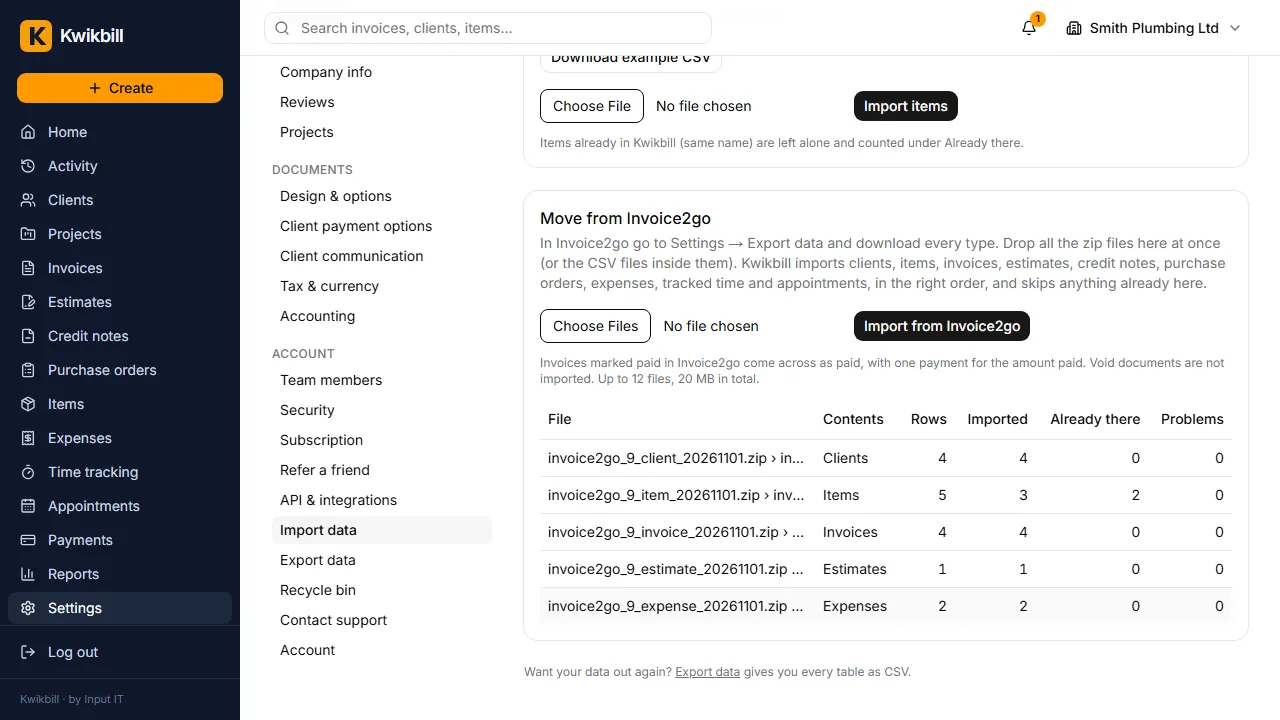
4. Press Import from Invoice2go
Clients and items go in first, then documents, so every invoice lands against the right client. The table shows what was imported, what was already there and anything that could not be read.
5. Your invoices keep their numbers
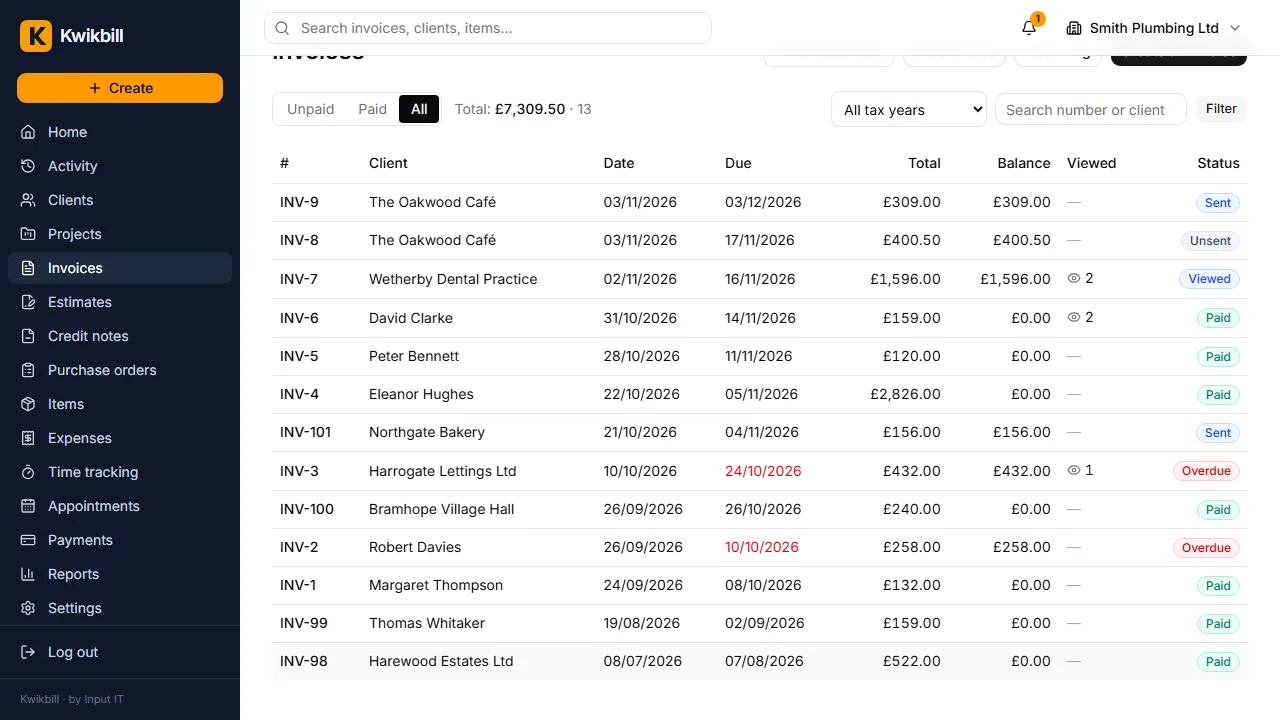
Invoices arrive with their dates and numbers, though leading zeros are dropped, so INV-0101 becomes INV-101. Anything marked paid in Invoice2go is paid here, with one payment for the amount. Check the next invoice number under Design & options.
6. Clients and items are ready
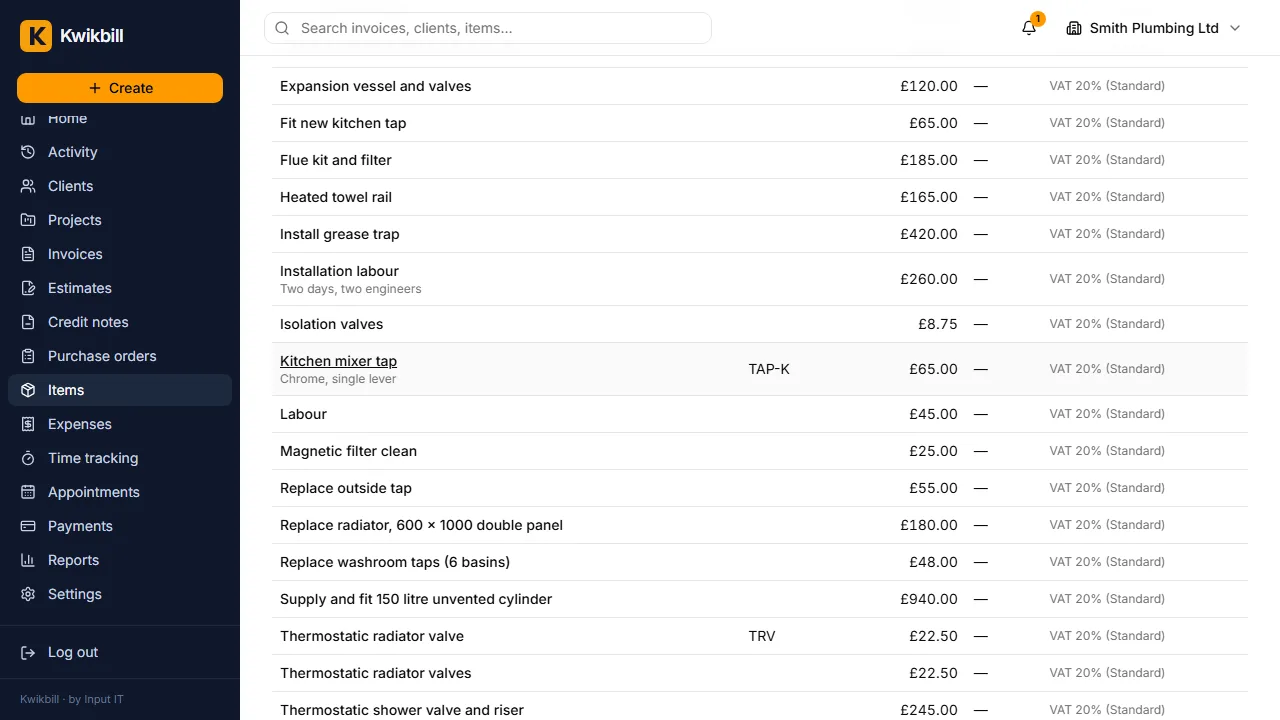
Clients are in the client list with their addresses and contact details, and your price list is ready for the next invoice. Importing again is safe: anything already here is skipped.